Intro
What is GeoCoding?
GeoCoding as used in TripManager allows you to
find a location on the OpenstreetMap map by entering (part of)
its address. TripManager also allows reverse GeoCoding, meaning
it can get the address belonging to GPS coordinates. That
address can be stored in a GPX file, or trip file.
TripManager doesn’t have a database with the
data needed, but it uses https://geocode.maps.co/ as a
webservice provider. To use GeoCoding in TripManager you will
need an Api_Key that you can obtain by registering here:
https://geocode.maps.co/join/ If you use the Free plan you can issue 5000 requests per
day, and 1 request per second. I have been using the Free
account for over a year now and never felt the need to upgrade.
Also worth noting that I never had spam from them, until
now.
Getting started
· Get the Api_Key and save it somewhere in a safe
place.
· Start TripManager.
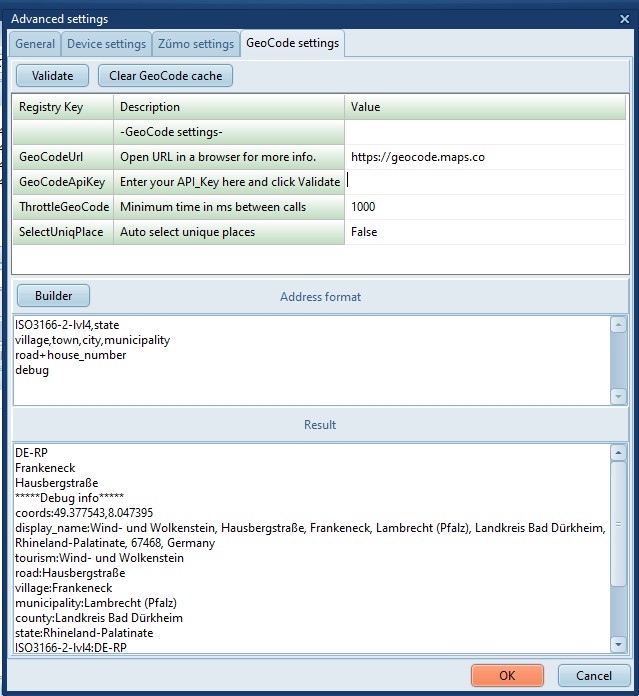
· Click on Advanced/Settings.
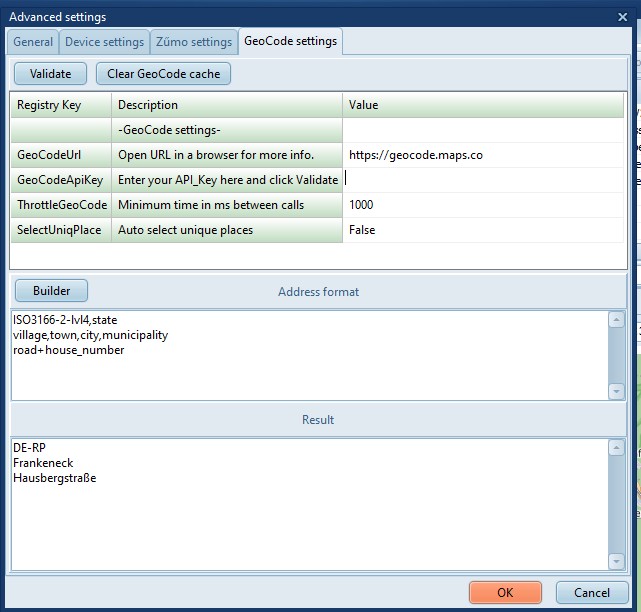
· Select the GeoCode settings tab.
· The ‘GeoCodeUrl’ should normally not be changed, unless
GeoCode changes their URL.
· On
the line that reads ‘GeoCodeApiKey’ enter (Copy and paste) your
Api Key. Click on Validate to test the Api_Key.
· Notice the Memo fields under ‘Address Format’. They define
how the address info from GeoCode is formatted for use in
TripManager.
· The default lines are:
· ISO3166-2-lvl4,state
· village,town,city,municipality,hamlet
· road+house_number
· Separate tags with a comma to specify backup
values.
· 2nd line: Use Village, if not avail use Town, if not avail
use City etc…
· Separate tags with a plus to concatenate
tags.
· Third line: use the Road name and append the House
number.
Tip: Use the button Builder to insert
pre-defined tags.
· ThrottleGeoCode. For a free GeoCode subscription
you are only allowed 1 request/second. Specifying 1000 (ms)
directs TripManager to throttle the requests to adhere to that
restriction.
· Click on OK.
For performance reasons, the lookup’s of
coordinates are cached in %AppData%\TripManager. You can clear
the cache using the button Clear GeoCode cache.
Searching the coordinates of a place
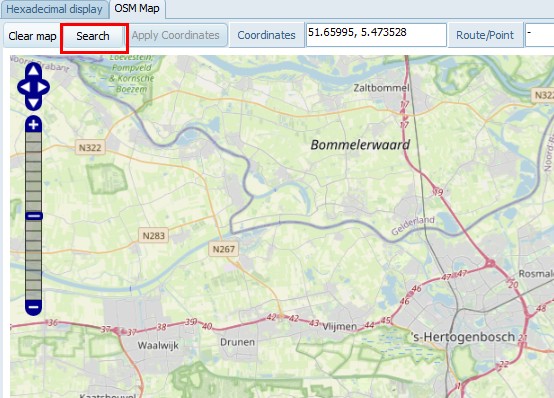
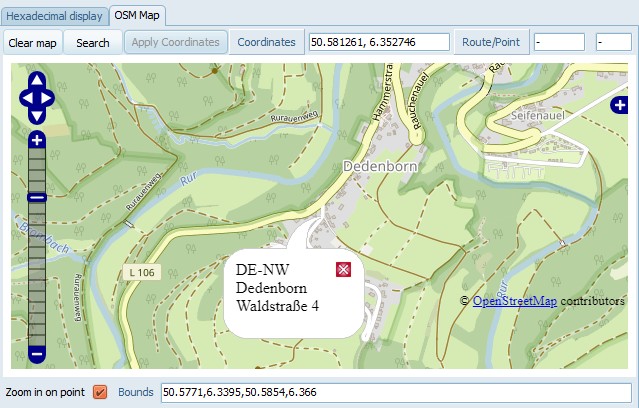
A button has been added on top of the Map
named Search.
Assume you are looking for ‘Europalaan 23’ in
‘Vlijmen’. (Address format as used in NL)
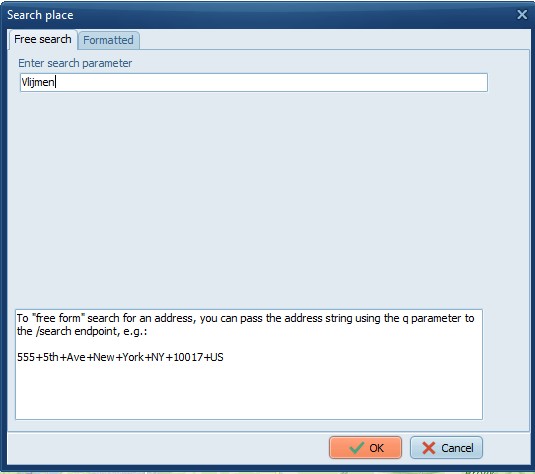
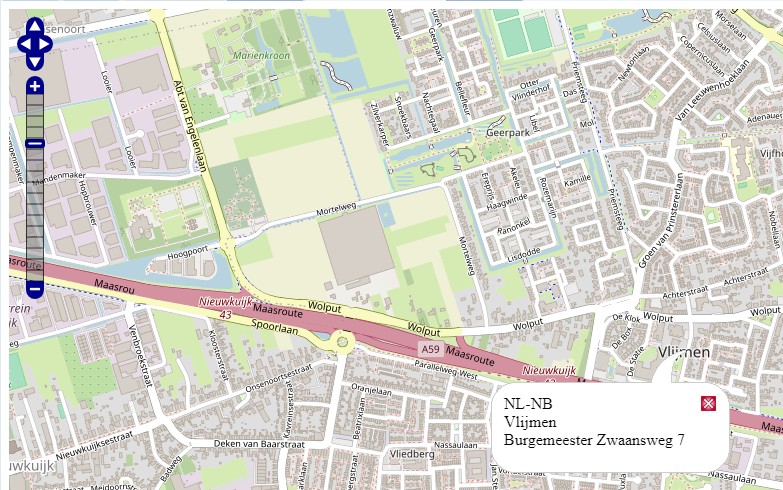
Click on Search and enter the Place
‘Vlijmen’, and look it up on the map.
|
|
|
|
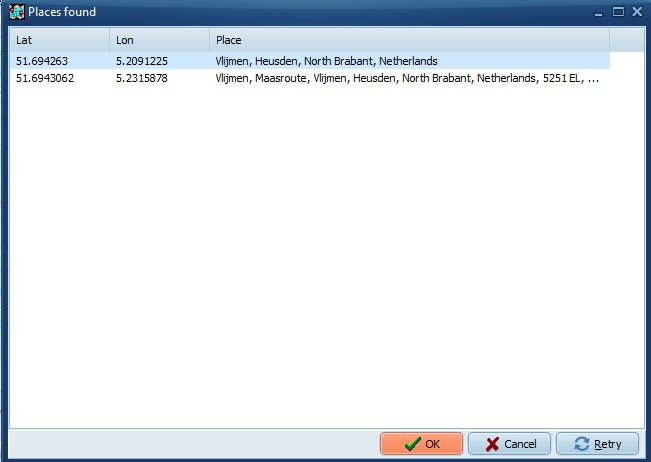
Select a location from the results, or
click retry to adjust your search.
|
|
Be more specific and add the street and
house_number.
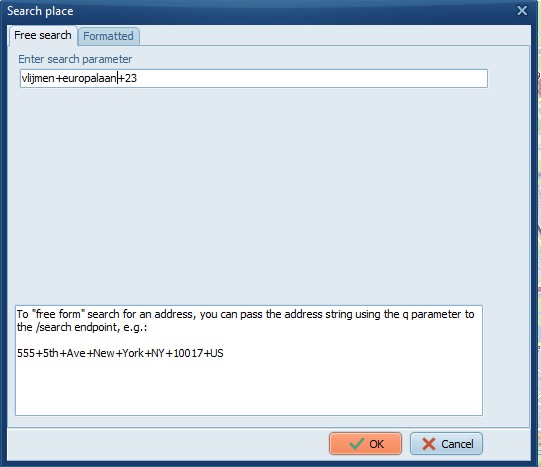
On the Free search tab use a + plus (or ,
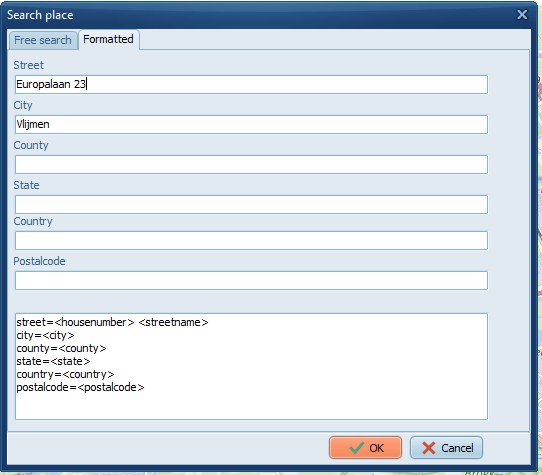
comma) to separate the search parameters. Or use the
Formatted tab.
|
Vlijmen+europalaan+23
|
Same, but formatted in separate
fields.
|
Searching the place of coordinates
With GeoCoding enabled these functions will
lookup the address of the coordinates.
· Using Ctrl+Click
in the map.
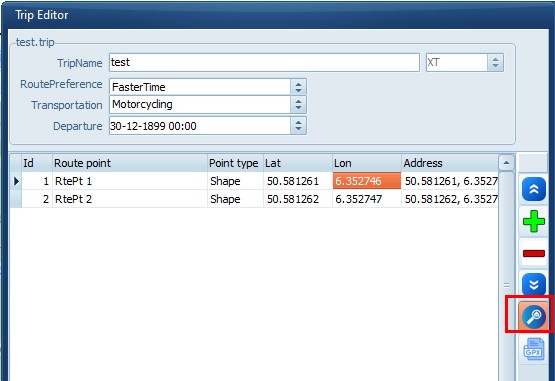
· Using the lookup
button in the TripEditor.
If valid coordinates are
available then TripManager will search for the address at those
coordinates. If no coordinates are available it will search for
the address and return the coordinates. The Address found is
stored in the trip file in field ‘mAddress’.
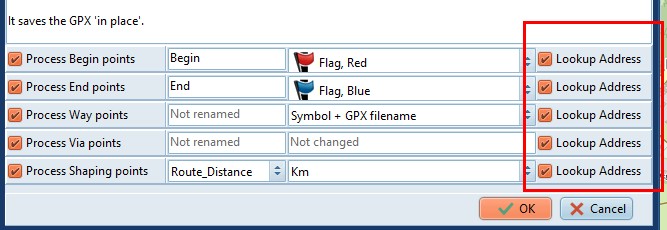
· Post processing
a GPX, for points that have Lookup Address
checked.
The address found is stored in
the <cmt> xml tag. Additionally for Way points in the
<address> tags.
Note:
Importing/Exporting in/from Basecamp will
retain the data, but the <cmt> is not visible in
BaseCamp.
Address format examples
The setting ‘Address format’ controls how an
address returned by GeoCode should be formatted. Here the same
location is shown in 3 different formats.
· The default TripManager settting:
ISO3166-2-lvl4,state
village,town,city,municipality,hamlet
road+house_number
· A
special tag named: display_name showing all data.
· A
special tag named: coords showing only the GPS
coordinates.
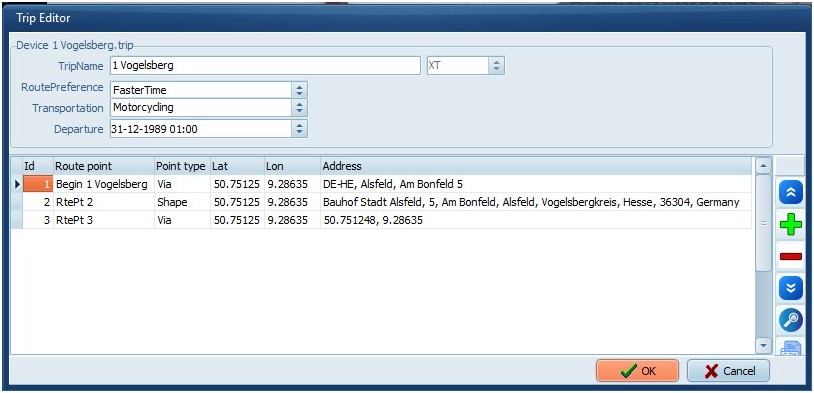
In Trip Editor:
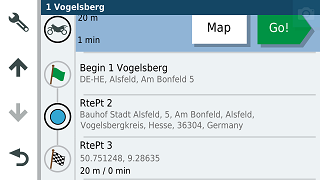
On the XT:
|
The available tag names depend on the
data that is available in OSM for a location. To view all
tags available for a specific location use the special
tag debug.
This will add a block with
*****Debug info *****
|
|