Starting with V1.6 support has been added for
Route preferences per segment. This means that if the GPX has
that information in <trp:CalculationMode> and
<trp:AdventurousLevel> it will be saved in the
created trip file.
The settings for BaseCamp created GPX files
are recognised.
BaseCamp does not provide the option to set
the Adventurous level. For Curvy Roads/Adventurous the
Default Adventurous level in Settings will be
used if not available in the GPX.
The Trip Window
can show and edit the information in the trip
file.
|
Setting the Route preference in
BaseCamp:
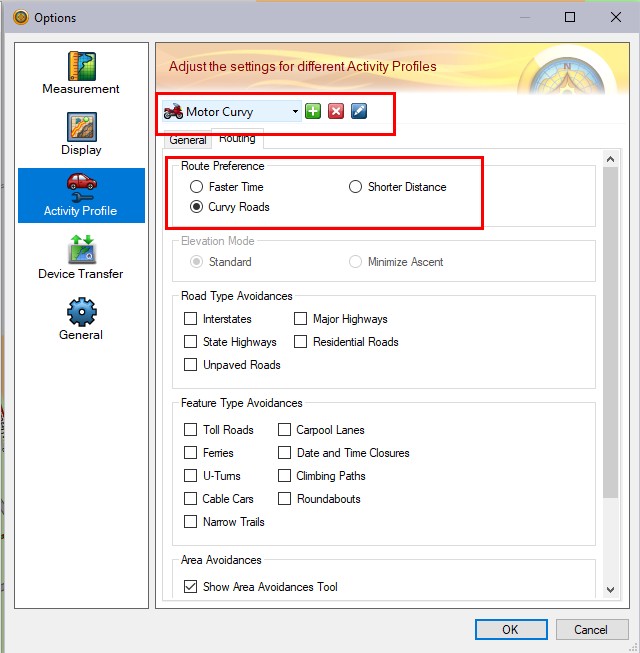
First create, or edit, a Profile.
The name is not important as long as you
can remember what it stands for.
Select the Route Preference to
use for that profifle.
|
|
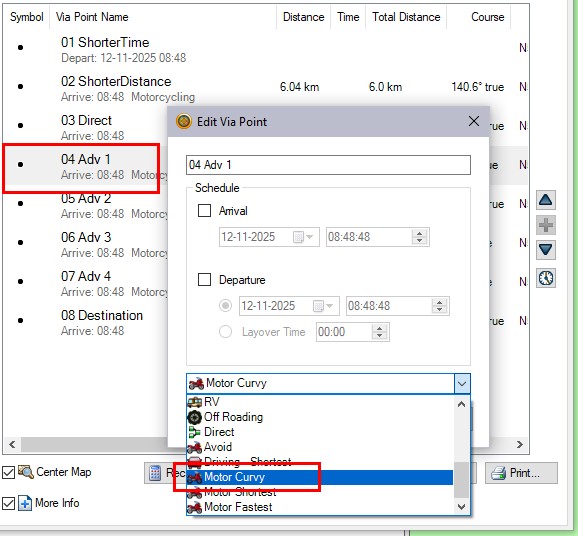
Assign the profile to the VIA
Point.
|
|
<rtept
lat="51.361862160265446"
lon="6.913857338950038">
<time>2025-09-05T16:06:26Z</time>
<name>04 Adv 1</name>
<sym>Waypoint</sym>
<extensions>
<trp:ViaPoint>
<trp:CalculationMode>CurvyRoads</trp:CalculationMode>
<trp:ElevationMode>Standard</trp:ElevationMode>
</trp:ViaPoint>
<vptm:ViaPointTransportationMode>
<vptm:TransportationMode>Motorcycling</vptm:TransportationMode>
</vptm:ViaPointTransportationMode>
The exported GPX will contain the
CalculationMode and TransportationMode from the
profile.
|
· Recalculation forced.
This was the only option for Pre V1.6
TripManager trips. The first time the trip is opened on the
XT(2)(3) it will be calculated.
The result could be different from the BC
calculated route, but if the XT(2)(3) recalculates the route
while driving it will be more predictable.
It is one of the known fixes for Closest
Entry Point (CEP). See below.
· No
recalculation forced.
Provided the route was calculated in BaseCamp
using the same Maps, transportation mode, avoidances, and no
traffic info is used the result will be the same as in
BaseCamp. If the XT(2)(3) has to recalculate the route it could
be different.
Consider setting automatic recalculation to
OFF for this method.
· Preserve track to route.
This will create a trip that looks like a
'trip converted from a track' on the XT(2)(3). As such the
result will be the same as in BaseCamp.
Consider setting automatic recalculation to
OFF for this method.
IMPORTANT: You need a GPX file
with a ROUTE, NOT a TRACK for this to work. The
resultant trip file looks like a trip created from a
track, but TripManager needs the info from a GPX ROUTE
to create that.
Technically: The GPX file should contain valid
<subclass> nodes.
When starting a trip on the Zumo you can
choose from the Via Points in the trip, but in addition there
is the default choice Closest Entry Point. This option
is known to be picky. It doesn't always produce the correct
result.
When is CEP useful?
Whenever you have to restart the route, and
none of the Via points in the route are suitable.
Example: You have covered 150+ kms of a 300 km
trip and needed to deviate from the route for fuel. You stopped
the original route to find fuel. After filling up you want to
rejoin the original route.
What is a symptom when it doesn't work as
expected?
When starting with CEP not all the
shaping points of the route are used, but when you start the
same route from the same location using Begin they are
used.
Known causes
(This list may not be complete)
· In
your route you have placed shaping points in such way that the
Zumo needs to make a 'sharp turn'. This can be a U-Turn, but
sharp Left, or Right turns are also known to cause
problems.
· You have placed shaping points in the center of a
junction, or roundabout.
· You have placed shaping points 'in a cow field', where no
road information is available in the map.
· The Avoidances selected on the Zumo conflict with the
original route. Also traffic info is suspected to cause
problems.
Some known fixes
(This list may not be complete)
· Reposition the shaping points in error. It can be a
tedious task to find exactly which shaping points cause the
error.
· Place a VIA point immediately before the shaping point in
error.
· Remove any avoidances setup on the Zumo.
· Recalculate the trip. Either by:
· On
the Zumo by first setting route preference to Straight lines
and then back to Faster time.
· In
TripManager by choosing the option Recalculation forced,
or Stripped routes.
How to verify the trip?
· Send the route to the Zumo, using your favourite method.
Also send a track of the route.
· Reboot the Zumo
· Settings/Navigation. Select GPS simulator.
· Apps/Tracks
· Open the track and select 'Show on Map'. All other tracks
are best not selected to 'Show on Map'.
· Reposition the Zumo (virtually) to the begin of the
route
· If
you know to have a Way point near the start use that by
selecting Where to/Saved. Select the Way point and click on
'Set Location'.
· You can also use the map. View Map/Tap a location.
· On
the bar at the bottom tap at the name.
· Scroll down to and click on 'Set Location'.
· Apps/Trip Planner
· Saved Trips, Select your trip.
· Go!
· 'Closest Entry Point'
· OK
· Compare the preview with the track shown on the map.
Verify that the shaping points are visible as blue
bullets.
Note: if the Zumo calculates only for a short
period this is a good sign.
A real life example
|
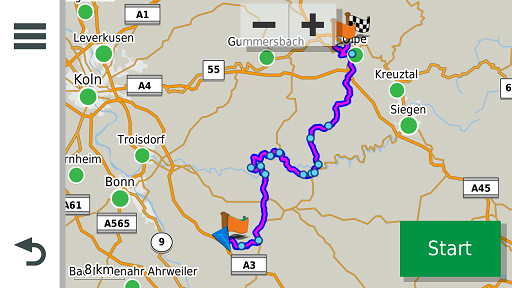
Started with 'Begin' all the
shaping points are used.
|
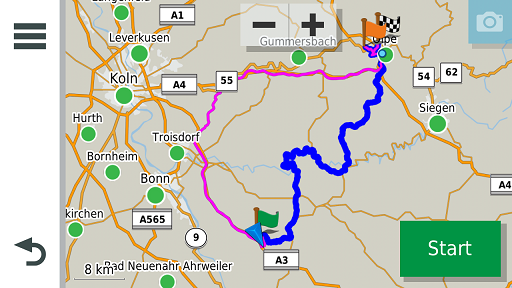
Starting with CEP nearly all
shaping points are disregarded. Instead the highway
is selected.
|
|
|
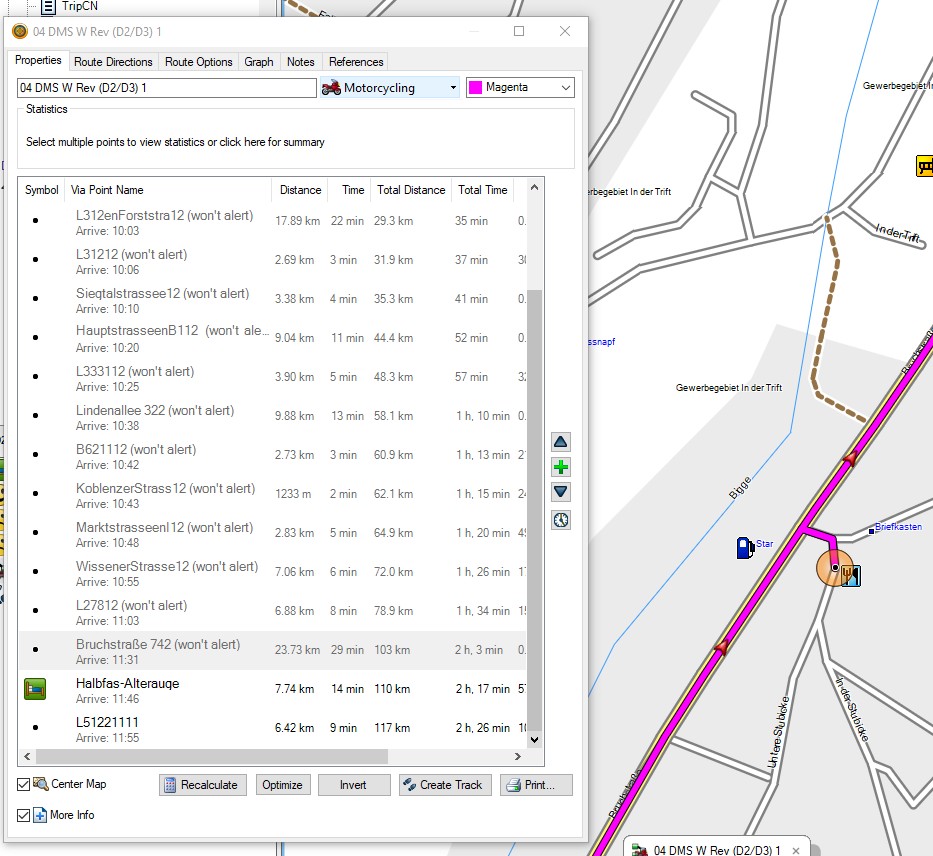
Shaping point 'Bruchstraße 742' is
located at the wrong road, forcing a U-Turn.
|