Intro
The Trip Editor should not be considered a
full-blown trip planner tool.
From the pre V1.9 help file:
It can not, and probably never will, calculate
a route. The trip file format has not been decoded enough,
TripManager does not know anything about routing algorithms in
general and more importantly used on the Zumo.
This has changed with V1.9! The Trip Editor
can now calculate a route using the route points of the loaded
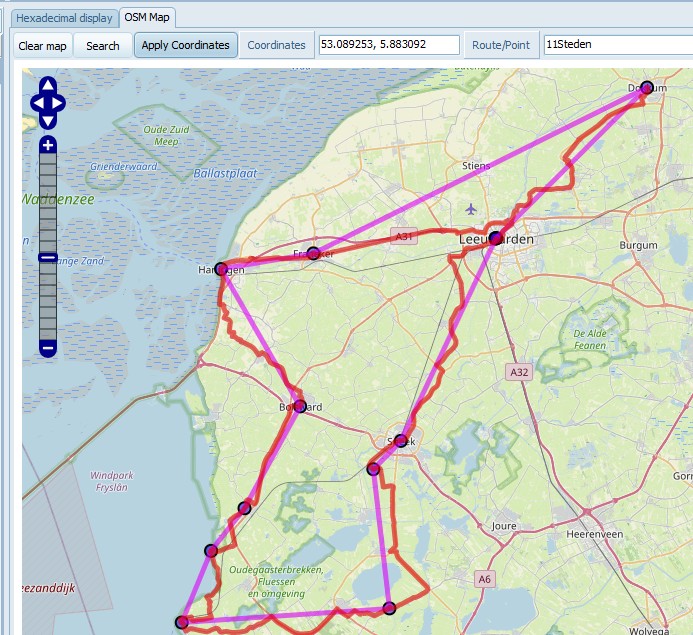
trip. The result can be shown on the map to give a preview
which roads will be used, and saved to a GPX file containing a
track, and a route containing automatically added shaping
points. See Route calculation.
Notes:
· The calculation is done using GeoApify's webservice. Their
webservice requires an Api Key, and has different plans,
including a free plan.
· The route calculation produced by GeoApify is not
necessarily the same as on the Zumo. An obvious reason is that
Geoapify uses (apparently) OpenStreetMap data to calculate the
route, but surely more reasons come in to play.
· Despite that warning the produced track, together with the
route points could actually be used. To put it in
perspective, routes created by MyRouteApp, Kurviger, as many
other route planners will also recalculate on import, producing
something different than planned.
What it can do:
· Review the results of a calculated trip, and make minor
modifications.
· Change general parameters. Trip name, Routing preferences,
Transport method and Departure date.
· Add, or Delete a route point.
· Move a route point to a new location.
· Reorder the route points.
· Create a new empty trip. Add route points from map
coordinates.
· Lookup address information for selected route points and
save that in the Address field. That info will also be
available in the Trip planner on the Zumo XT(2)(3). Note that
the route planner on the XT2/XT3 will only show addresses for
Via points.
· Import/Export route points from/to GPX/CSV files.
· Import can read Via and Shaping points from a route in the
GPX, or Way points. The GPX can be processed by Trk2Rt first to
automatically add more shaping points.
· Export can create a GPX from a trip file, that you can
import in BC.
· The Trip can be opened in Kurviger, for route
planning.
· It
can read/write trip files in folders on your computer’s hard
drive, and on the Device Zumo XT(2)(3).
Note: Modifying a trip clears any existing
calculation result, and will make the Zumo recalculate the trip
next time it is opened.
Editing an existing trip
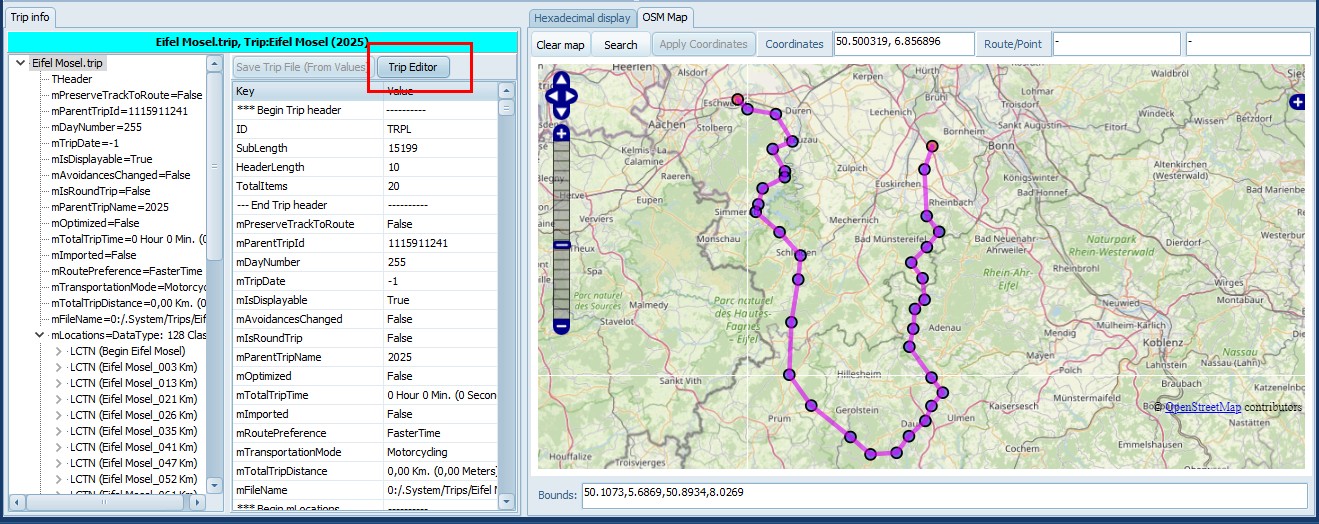
· Open a trip, from your hard drive, or the device
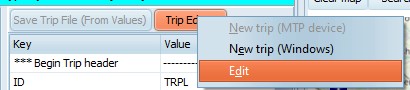
· Click on Trip Editor, Edit
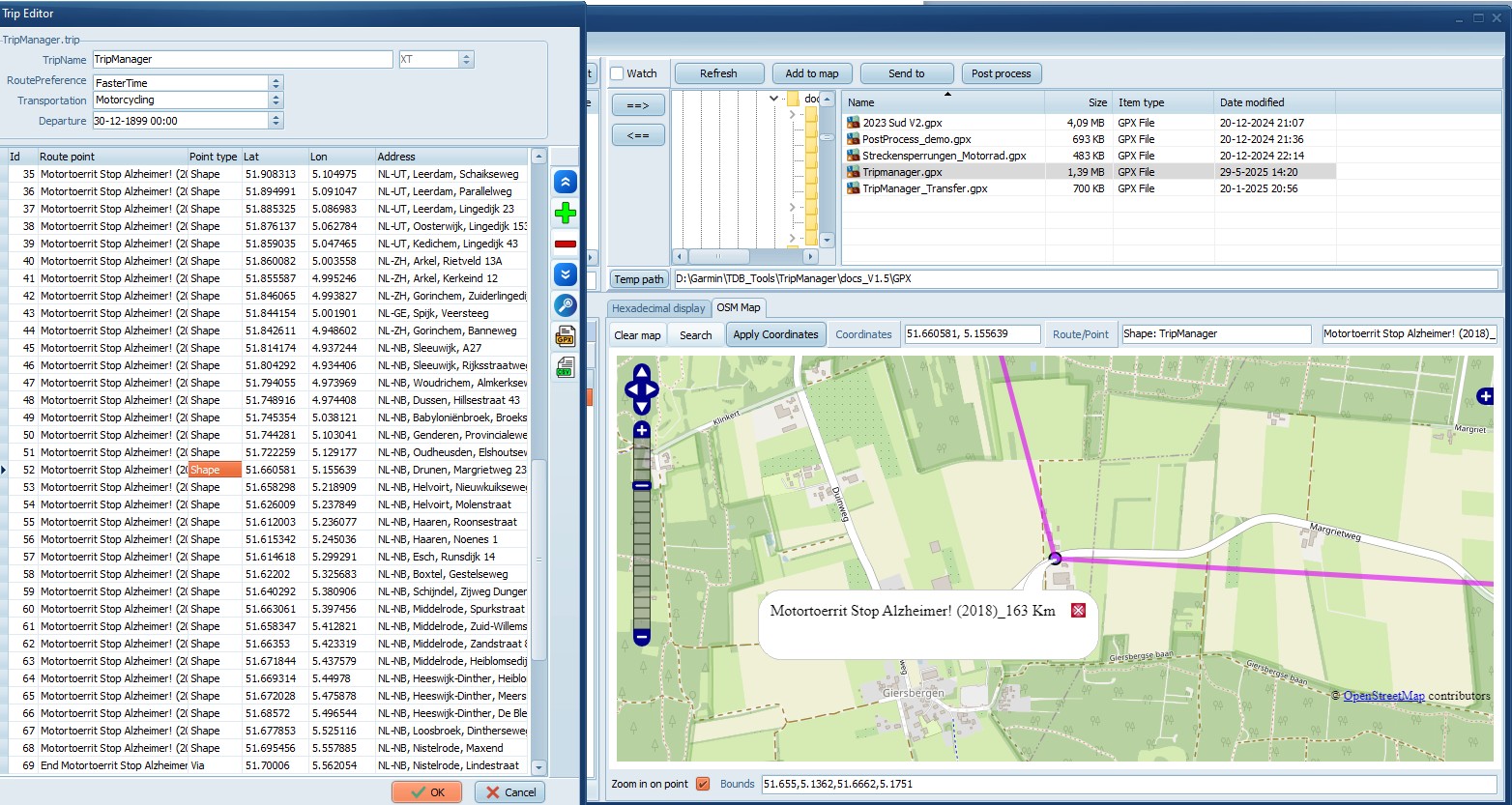
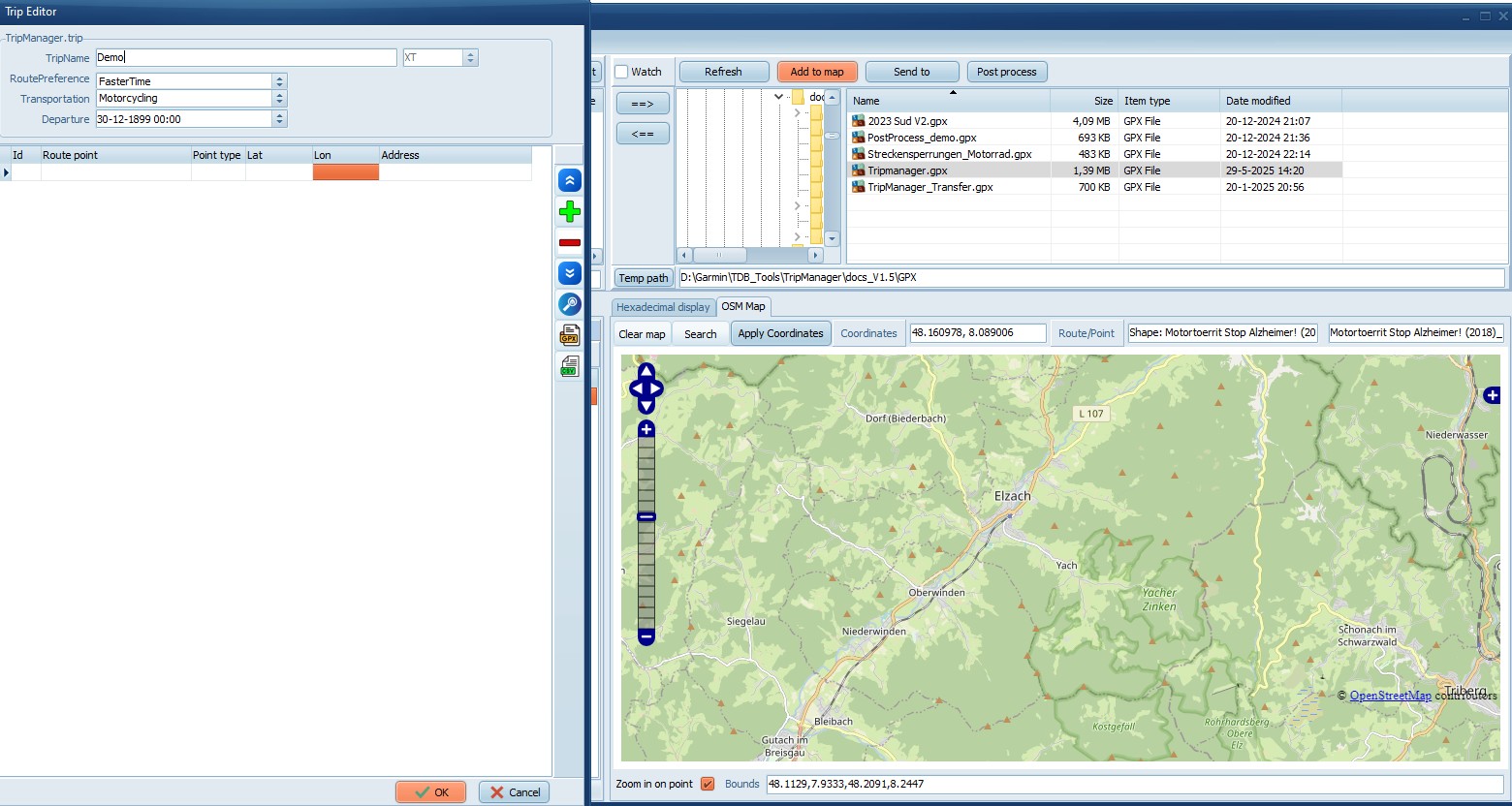
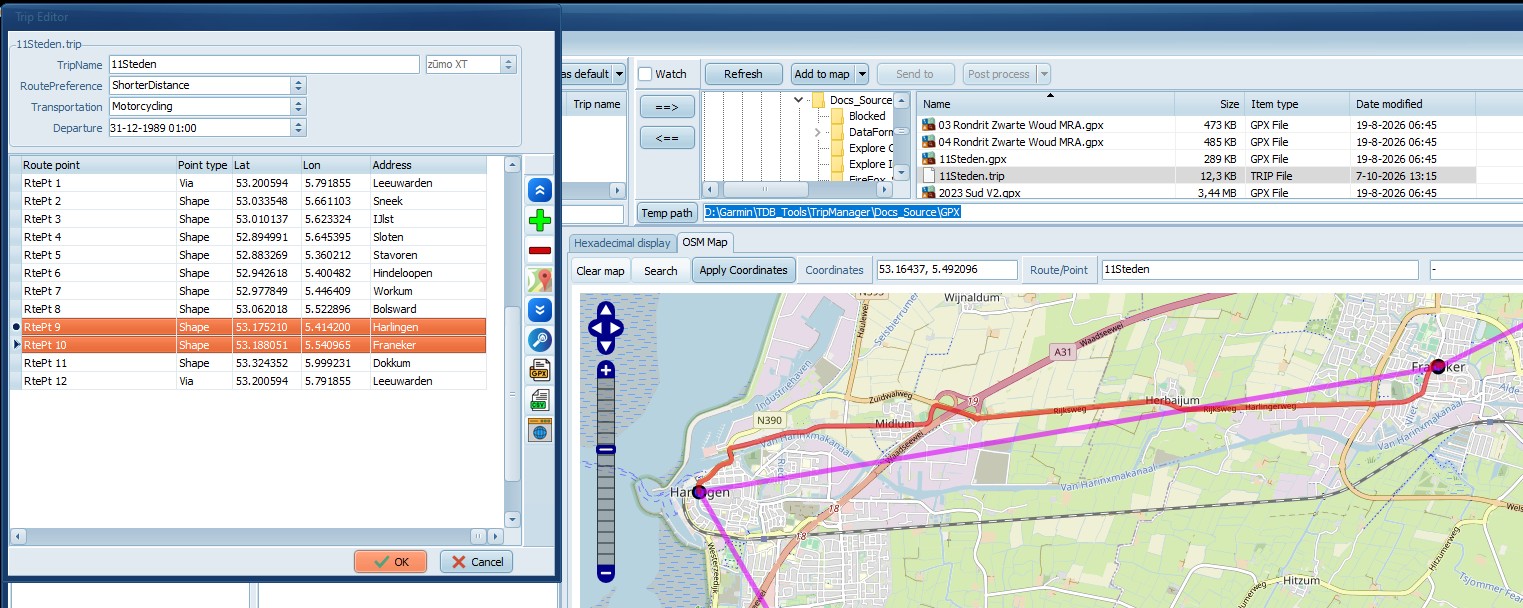
The Trip Editor opens up on the left, leaving
space for the map. Selecting a Route point will update the
map.
Creating a new trip
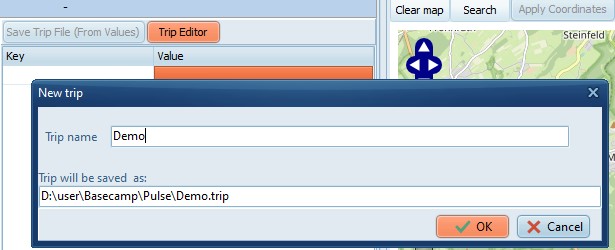
Choose either New trip (MTP device), or
New trip (Windows). A dialog opens where you need to
enter a Trip name and click on OK.
Notes:
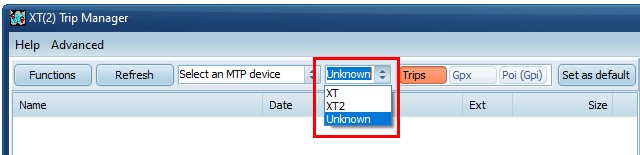
· Make sure the selected model matches the model you want to
create the trip file for. XT, XT2 and XT3 trip files are not
compatible.
· MTP device will normally be an XT(2)(3), but it is
possible to use any MTP device that allows storing files. Hence
the term ‘MTP device’ is used.
· New trip (MTP device) is only enabled if an MTP device is
connected.
A blank Trip Editor window opens:
Trip editor controls
|
|
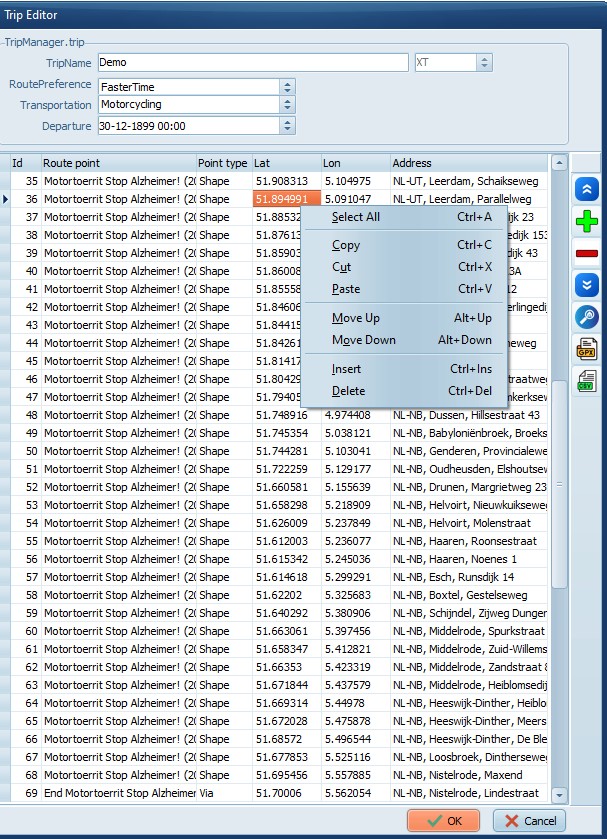
Edit boxes TripName, RoutePreference,
Transportation and Departure can be
edited.
The model (XT(2)(3)) is readonly,
the model of a trip file can only be specified when
creating .
The Grid columns can be edited, except
for the ID, which is autoassigned.
Right Click brings up the context menu.
All functions are also accessible using keyboard
shortcuts.
The coloured buttons on the
right:
Move Up
Insert
Delete
Move down
Lookup address (if
configured)
GPX
Import
Trk2RT + Import
Export
CSV
Import
Export
Kurviger
Opens the trip in Kurviger
Clicking OK saves the trip file,
Cancel discards the changes.
You can use the clipboard to copy
from/to Excel. To avoid problems with the decimal format
in the GPS coordinates first set the format in Excel to
‘text’.
|
Common tasks
Change a route point:
· You can change the name and address to something
meaningful.
· Change from Shape to Via or vice
versa.
· To
change to GPS position you can overtype the Lat/Lon values, but
it is easier to use the button ‘Apply coordinates’ from the
map.
Delete a route point:
Ctrl+Del
Insert a route point:
Ctrl+Ins
· The route point will get a default name: ‘RtePt’ +
Id
· All route points with default names will be renumbered
when (other) route points are inserted.
· The route point will be set to Shape. When saving
the trip file, the first and last route point are automatically
reset to Via.
· The route point will get the GPS coordinates from the
currently selected point on the map.
Moving a route point: Alt+Up, or
Alt+Down
Moving multiple route points:
· Mark the lines to move, using Shift + Cursor keys, or
Shift/Ctrl+Left mouse button.
· Cut the lines to the clipboard, using Ctrl+X.
· Select the line where the route points should be moved to,
and Paste using Ctrl+V.
Deleting route points, looking up address and
copying/cutting to clipboard support multi-selection.
Adding route points using the Map.
· Locate the point you want to insert on the map.
· You can use the Search button, or use
Ctrl+Left mouse button.
· Select the route point where the new point should be
inserted after.
· Click on the Plus button, or use
Ctrl+Ins.
Updating the Address
· Select the route points to update, or use CTRL+A to select
all route points
· Click on the Lookup Address button.
· The requests will be throttled, meaning TripManager will
issue no more requests/second than specified.
Import route points from a GPX, or CSV
· Click on the GPX/CSV button, and choose Import. Open the
file.
· A
dialog will be shown with the Waypoints and Routes found in the
GPX. Check what to import.
· To
automatically add more shaping points use Trk2Rt + Import. More
shaping point will create a trip that matches the original
route closer.
· The newly created route points will be added after any
existing route points.
Export route points to a GPX, or CSV
· Click on the GPX/CSV button, and choose Export.
· The saved GPX contains only route points. In BC you will
need to recalculate.
· Click on the blue globe button.
GPX compatibility has been tested with BC,
Kurviger and MRA, but other software should also work.
When saving a trip file the calculation will
be cleared, to ensure that the next time the XT(2)(3) will
recalculate the trip. A MessageBox will appear to warn
you.
The map will reflect the changes made, and
connect the route points using straight magenta. lines.
You can turn on/off zooming in on a selected
route point using the checkbox Zoom in on point at the
bottom of the map.
Route calculation
Route preview
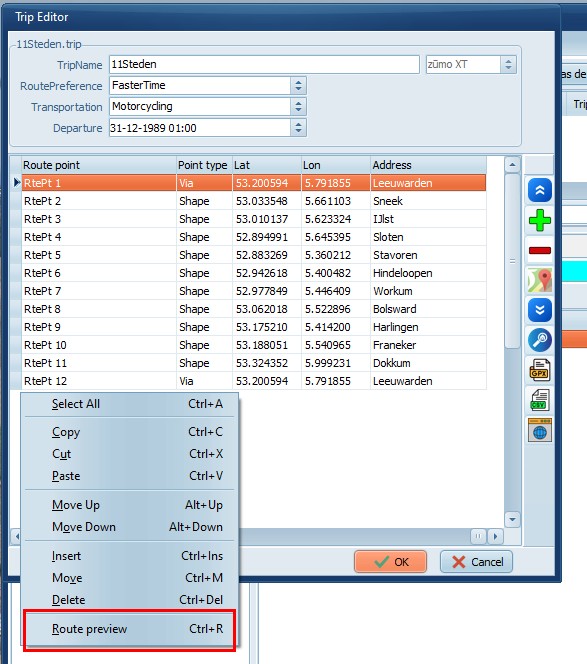
With a trip containing route points loaded
Right Click and choose Route preview, or CTRL+R.
The calculated route is shown on the map in
the color (red) configured in settings.
To limit the calculation to only the route
points you're interested in, and thereby not exhausting your
credits, select those route points first. (Use Shift, or Ctrl +
Left Click)
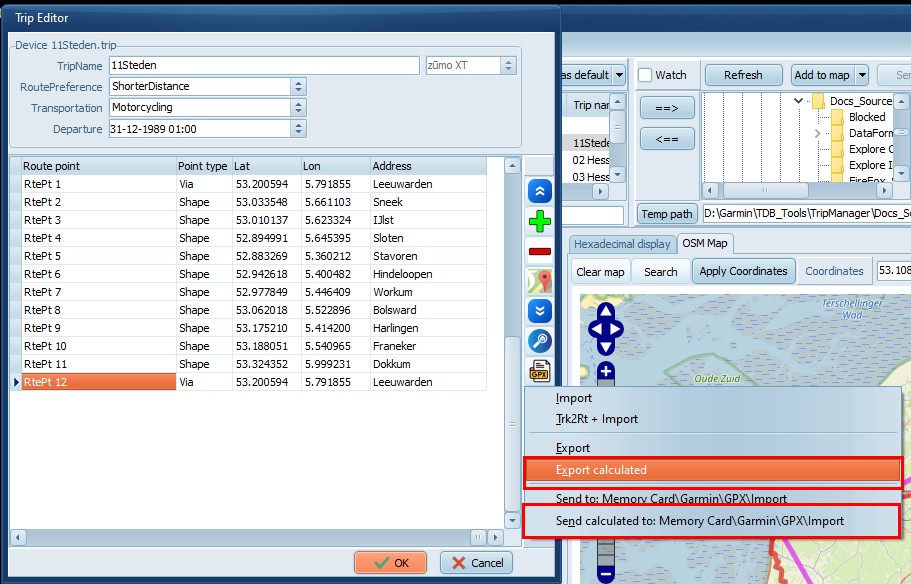
The route calculation can also be exported to
a GPX on Windows, or sent to a connected device. Use the GPX
button and select one of the 'calculated' menu options.
The GPX file will contain a track with the
calculation result and a route with the route points as loaded
in the Trip Editor. There is no guarantee that importing the
GPX in your route planner, or Zumo, will produce the same
result as GeoApify!
When you set 'Add shaping points in calculated
routes' to true, TripManager will add shaping points to the
route, in an effort to make the route follow the track closer,
but you should always check the result.
Webservice API
This is a link to GeoApify documentation
describing all the parameters. TripManager
uses only these parameters:
apikey=
waypoints=
mode=motorcycling/drive
taken from the trip file. If automative then
drive else motorcycling
type=balanced/short
taken from the trip file. If shorterdistance
then short else balanced
intermediate_waypoint_mode=through_stop/pass_through
For the export to GPX through_stop else
pass_through
avoid=tolls/ferries/highways
Taken from the settings