| Previous Top Next |
13) Import, export (CSV, Excel)
|
|
Leeuwarden
|
|
Sneek
|
|
IJlst
|
|
Sloten
|
|
Stavoren
|
|
Hindeloopen
|
|
Workum
|
|
Bolsward
|
|
Harlingen
|
|
Franeker
|
|
Dokkum
|
|
Leeuwarden
|
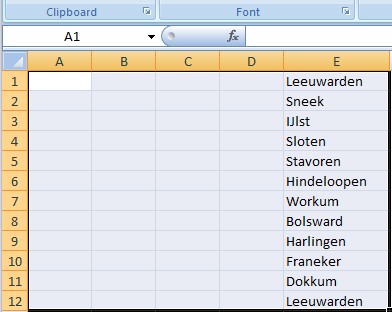
· Prepare a sheet
in Excel with the address in column E. No column heading needed.
Address is the minimal info needed. Other columns can be added if
desired and available.
|
|
 |
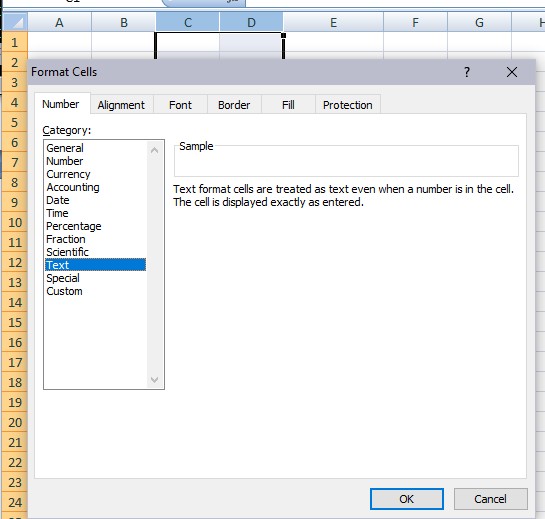
· Create a new
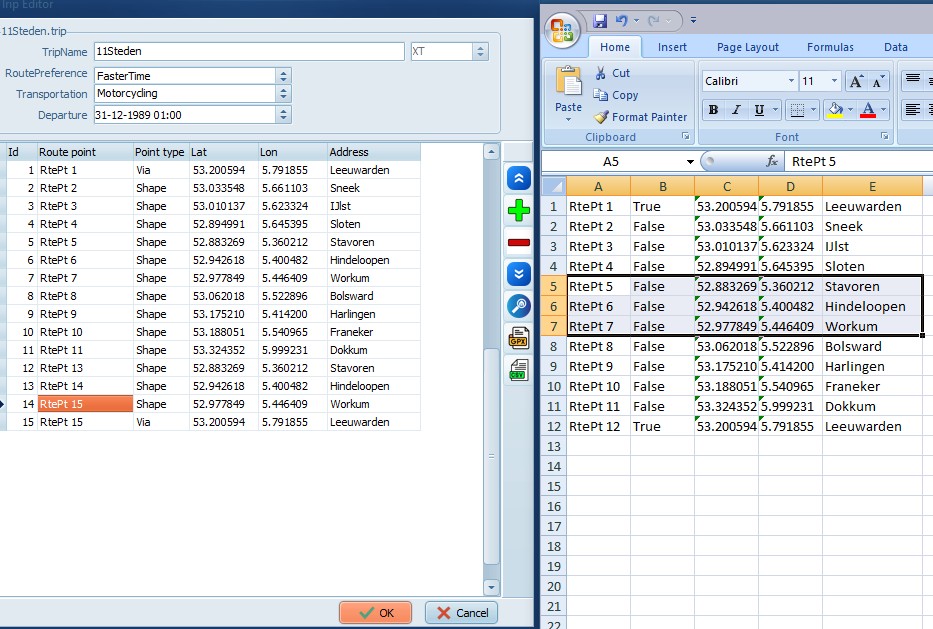
empty sheet in Excel and set at least column C and D as
text.
 |
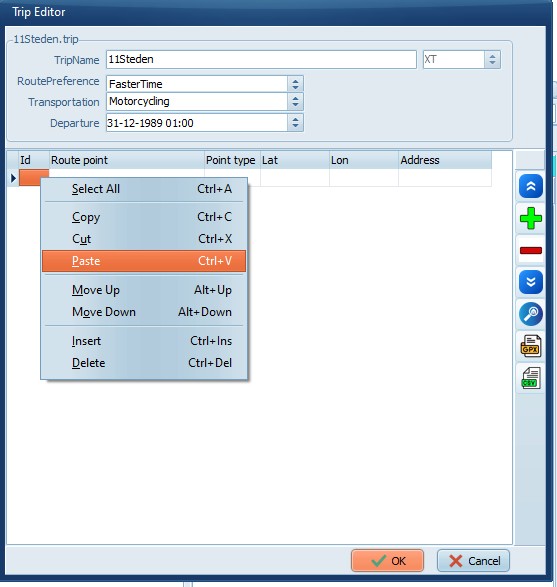
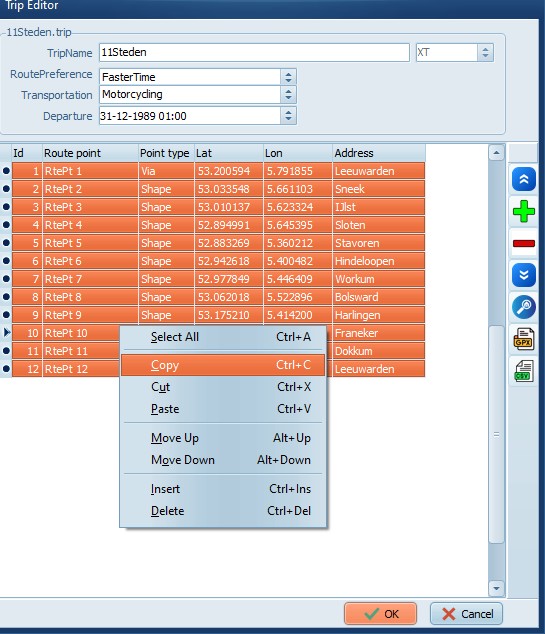
· Select all
lines in TripManager (CTRL+A) and copy to clipboard
(CTRL+C)
 |
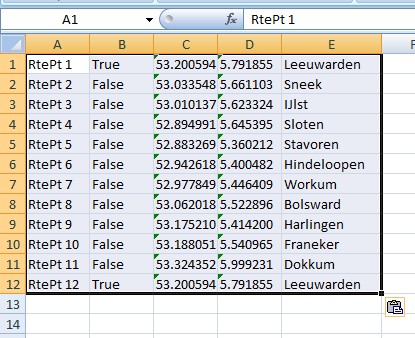
· Paste in
Excel.
 |
· Do with it
whatever you like.
|
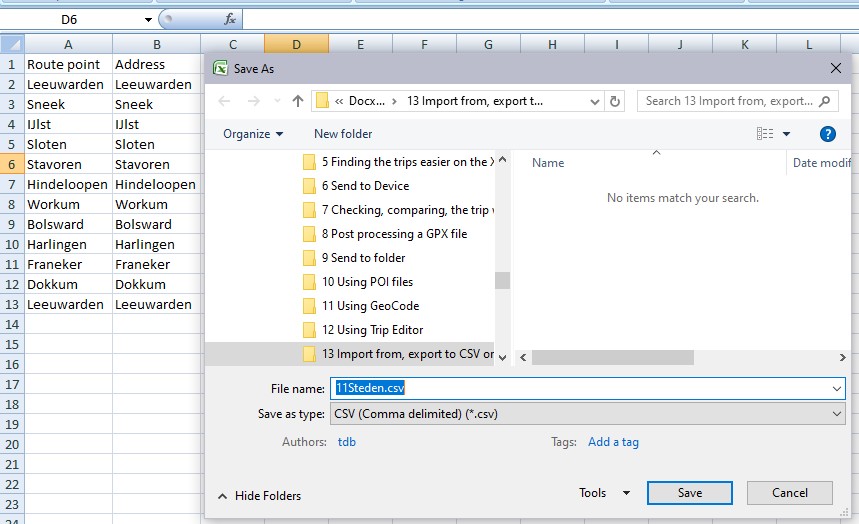
Route point;Address
Leeuwarden;Leeuwarden
Sneek;Sneek
IJlst;IJlst
Sloten;Sloten
Stavoren;Stavoren
Hindeloopen;Hindeloopen
Workum;Workum
Bolsward;Bolsward
Harlingen;Harlingen
Franeker;Franeker
Dokkum;Dokkum
Leeuwarden;Leeuwarden
|
 |
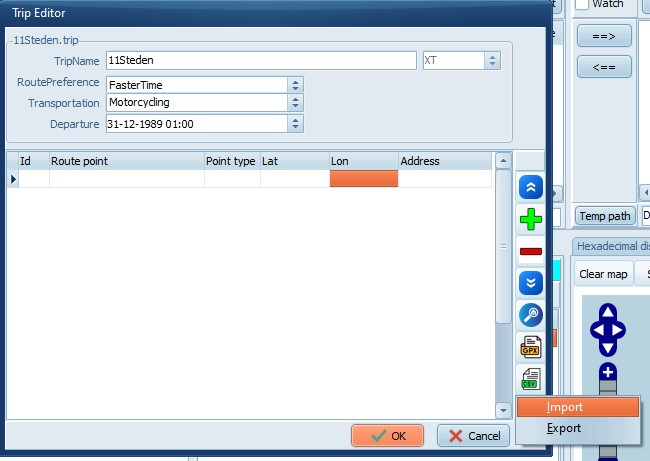 |
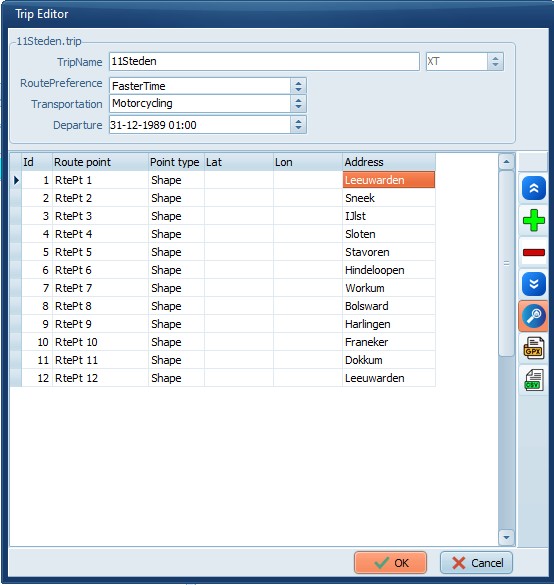
· Open the
prepared CSV file. The result should look like this. You can now
look for addresses.
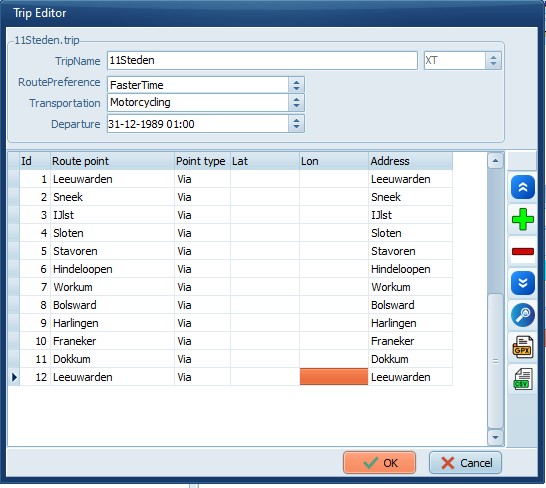 |
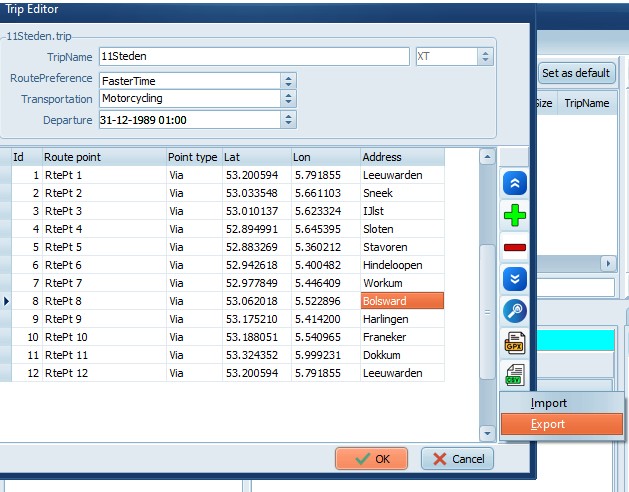 |
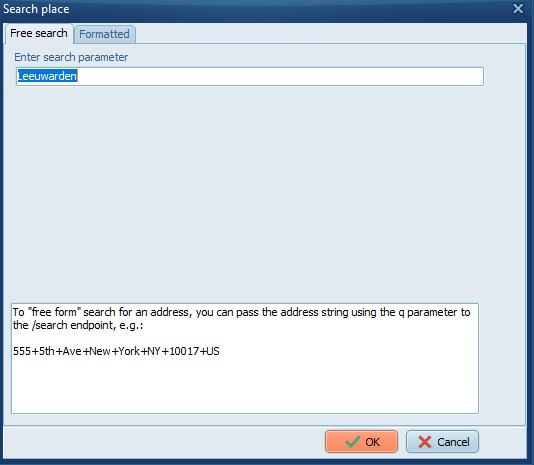 |
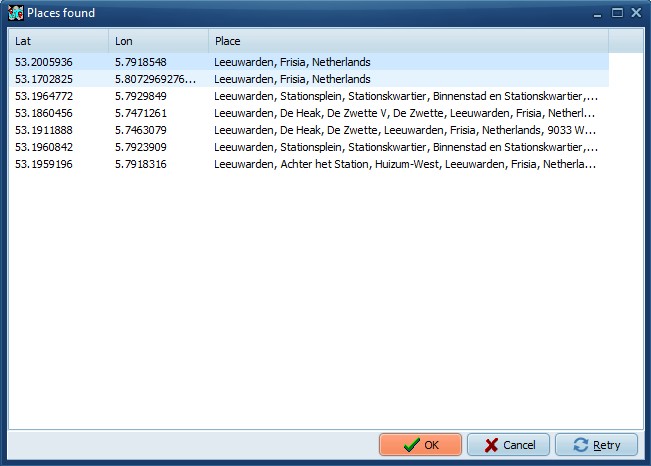
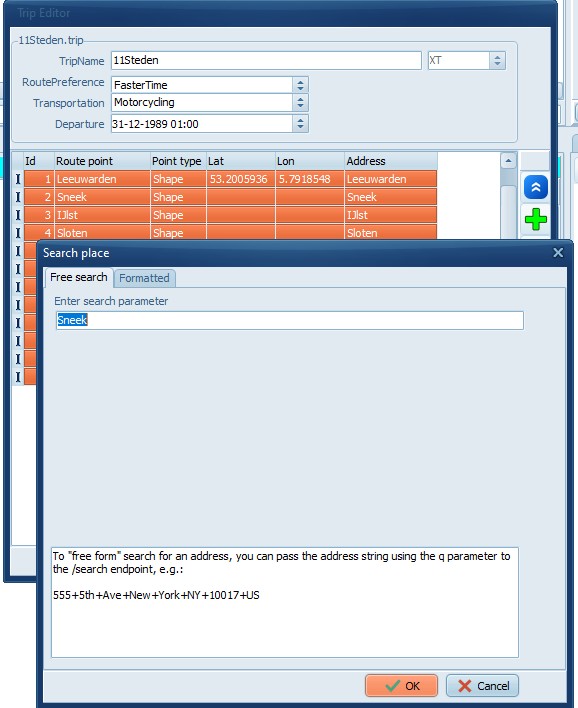
· For every selected line the search dialog
will be shown.
· Select the matching line and accept the proposed
coordinates with OK.
· Cancel will not update the Coordinates, Retry allows
you to change the search parameter and retry.
|
 |
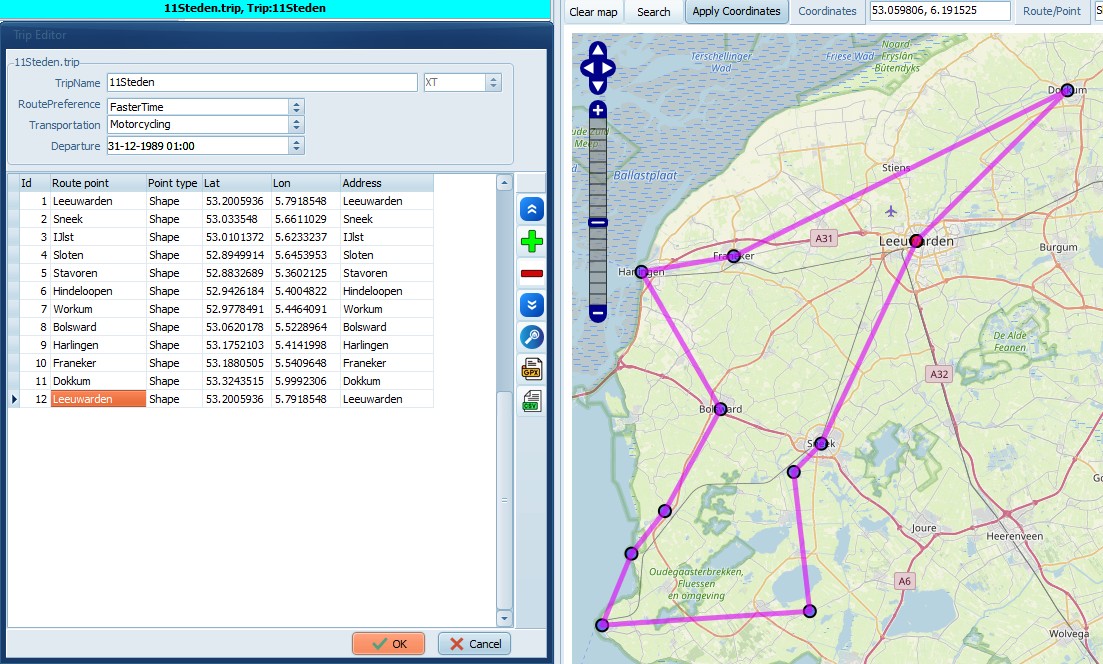
· Note: While the trip has not been calculated, TM
will only draw straight lines between the route
points.
|