Strictly speaking post processing a GPX is not
needed. But it can be useful.
· It
will clear the Subclass field
of the Via and Shaping points. Thereby
preventing a rename of Via and Shaping points on the
XT(2)(3).
· It
will put the shaping points ‘on the road’. Shaping points that
are not placed on the road can lead to routing errors. This
process is sometimes called ‘Unglitching’.
· Optionally the Begin, End and Shaping points are renamed
and assigned a category.
· Via points are never renamed.
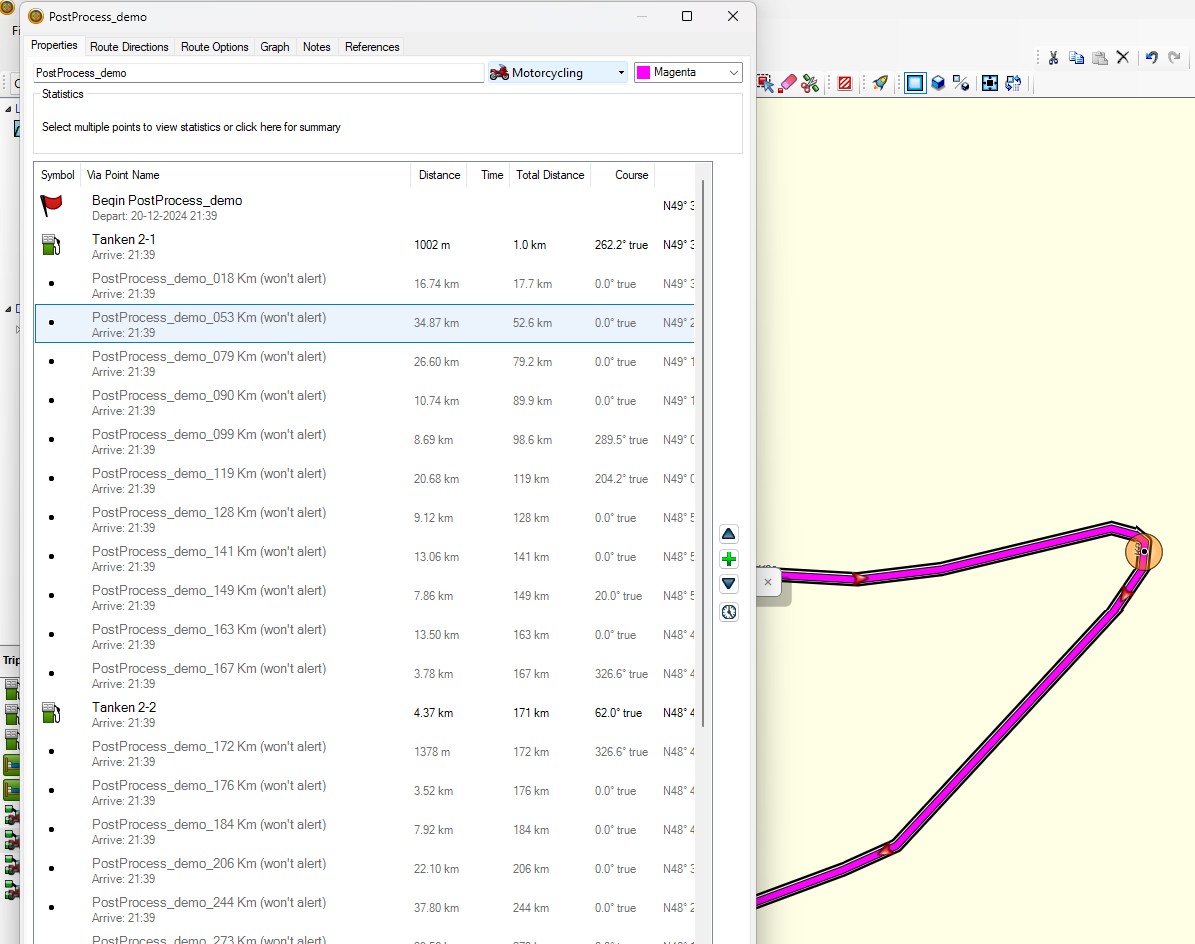
· Optionally Shaping point are renamed to Routename +
distance or Routename + sequence. Example: the
routename is ‘tripmanager- demo’. Shaping points will be named
‘tripmanager-demo_010 Km, (025 Km etc.)’ or
‘tripmanager-demo_001, (002, 003 etc)’. There are also options
to start the name with the distance, or have the distance in
Miles.
· Optionally Waypoints are assigned categories. EG:
SYM:<name of symbol> GPX:<name of GPX file> This
makes finding waypoints (Saved locations, favourites) easier on
the Zumo.
· If
GeoCoding has been set up in Advanced settings, TripManager can
lookup addresses and save them in the GPX.
Steps to perform
· Export a GPX file from Basecamp. Or any other app that can
produce GPX files.
· For MRA choose GPX 1.1 Route + Track + Poi. Side note: MRA
mentions GPX 1.0, GPX 1.1 and GPX 1.2. But GPX 1.2 is a non-
existing standard! If you look in a 1.2 file you will see GPX
1.1 format. I cant help thinking the 1.2 name was chosen by
people that have little knowledge of XML standards.
· For Kurviger choose GPX (*.gpx), in 'Content' check
'Route' and 'Track'. Additonal Waypoints can be used to add
more Shaping points resulting in a trip on the device that
looks closer to the planned route.
· In
TripManager navigate in the Top-Right panel to the folder where
the GPX was saved.
· Select the GPX file. (You can select multiple GPX
files)
· Click on Post process.
· The GPX file is updated ‘in place’.
· Import the GPX back in Basecamp to see the changes. Note:
‘Delete’ the routes first in Basecamp (Shift/Delete). Make sure
the routes are not listed in ‘Unlisted Data’. If you don’t,
Basecamp will add -1 to the names to avoid
duplicates.
Notes:
· TripManager supports Drag and Drop.
· Dragging a directory into TripManager will change the
current directory.
· Dragging a GPX file into TripManager will popup the post
process dialog. Tip: Holding the Ctrl key pops up a menu where
you can select 'Post process', or 'Send to'.
· Dragging a GPX file from TripManager into Basecamp will
start the import.
· If
you check ‘Watch’. TripManager will watch for changes in the
selected directory and popup the post process dialog. So you
only have to export a GPX file from BaseCamp and TripManager
will popup.
|
|
|
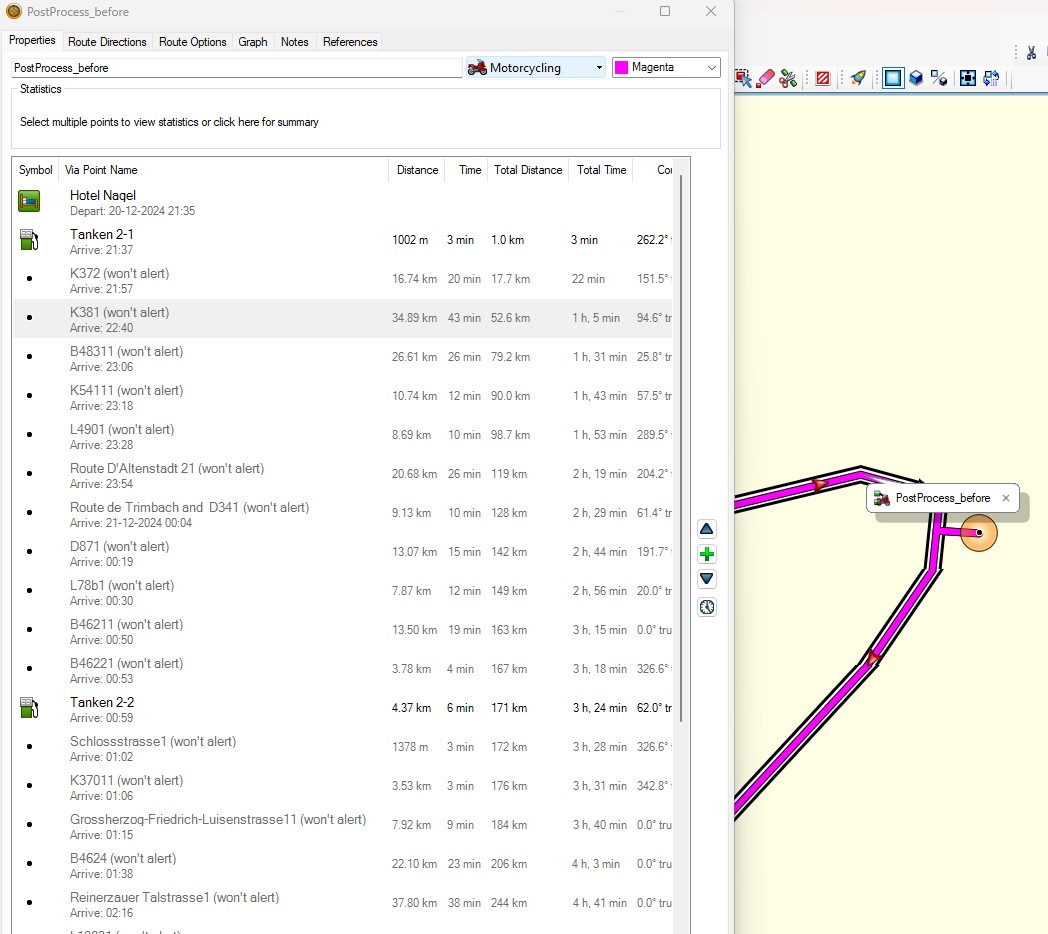
Before post processing
|
|
|
|
After post processing
|